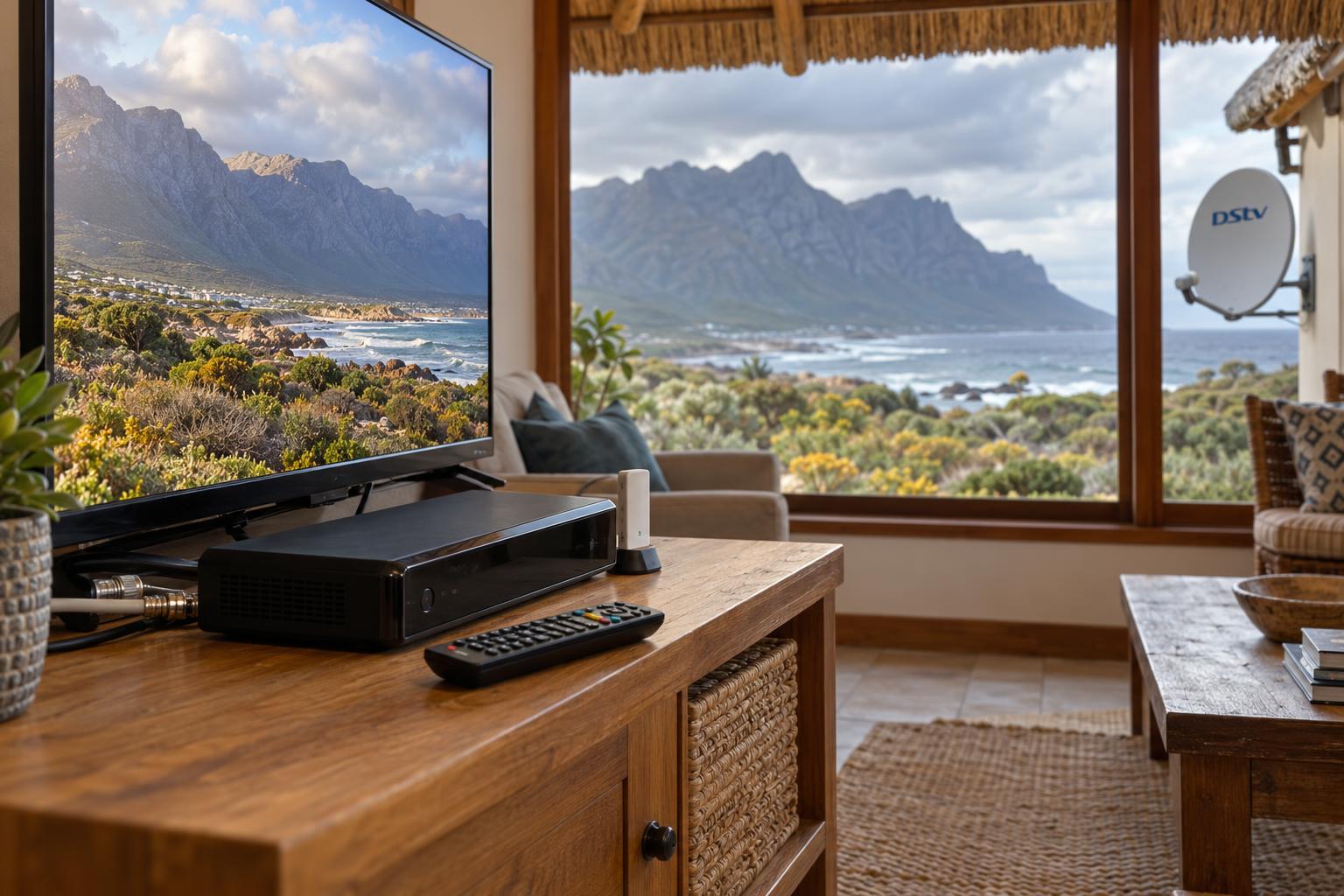
Quick answer: A DStv WiFi connector is a small USB WiFi adapter that lets an older DStv Explora join your home WiFi. It plugs into the docking station, the docking station plugs into the USB port at the back of the Explora, and you connect through the blue DStv button, Settings, System Settings and Connectivity Set-up. It only brings in internet features like Catch Up. It does nothing for your satellite picture.
This is our DStv WiFi connector Betty's Bay guide, written from what we see on real call-outs along this stretch of coast. The setup takes about ten minutes when things go right. Below we show you what you need, the exact steps, and how to fix each step when it goes wrong.
What a DStv WiFi connector does (and what it does not)
Your Explora has two separate feeds. The cable from the dish brings in live TV. The internet connection brings in everything else.
The DStv WiFi connector only handles the second feed. Once your Explora is online, you get Catch Up for your package, Box Sets, and the option to set recordings from your phone with the DStv app.
It will not fix a picture that freezes in the wind. It will not clear an E48-32 error. Those are dish, LNB or cable problems, and a WiFi adapter cannot touch them.
Which Explora needs a DStv WiFi connector?
The adapter was made for the original Explora range, which has no WiFi inside. The Explora Ultra has WiFi built in, so it connects straight to your router with no extra hardware.
Not sure which one you have? Our Explora vs Explora Ultra comparison shows the differences in plain terms.
Buy the DStv accessory itself, model USB3000. A generic computer WiFi dongle is not made for the Explora, even if it fits the port.
How much internet speed you need
DStv gives clear minimums for a connected Explora:
- 2Mbps for downloads and remote recording
- 4Mbps to stream in standard definition
- 10Mbps or more for HD streaming
DStv also recommends an uncapped line, because streaming uses a lot of data. If your connection is a small capped fixed-wireless plan, keep an eye on usage.
If an Explora is still on your wish list, our DStv Explora installation service includes the network setup, so it arrives online from day one.
What you need before you start
Most failed setups we fix in Betty's Bay and Pringle Bay started with something missing at the beginning. Check this list first and the rest is easy.
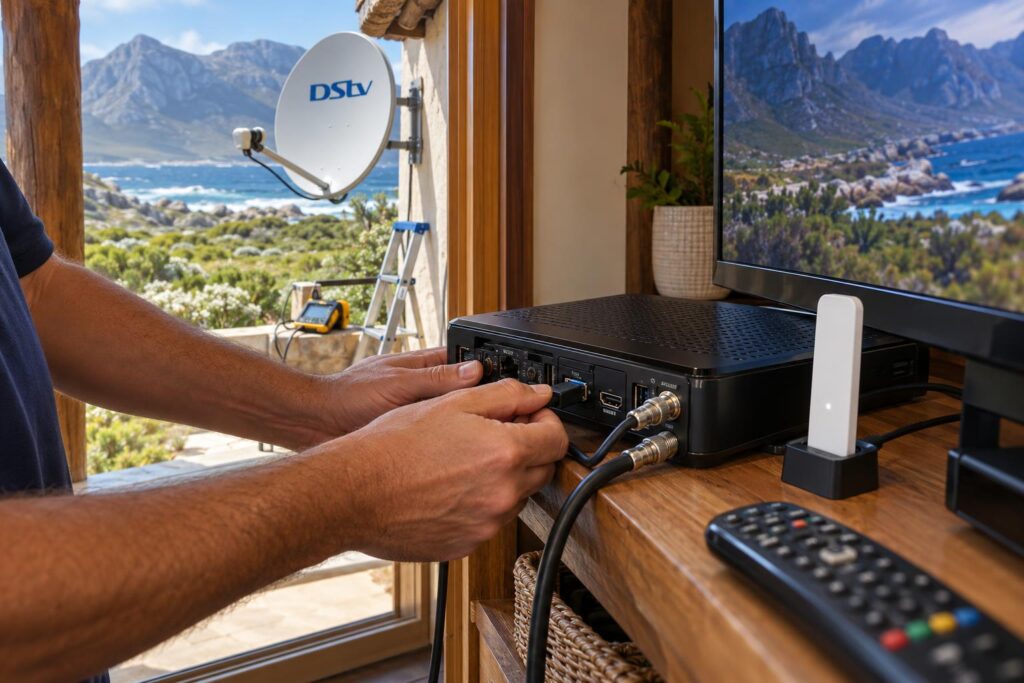
Your DStv WiFi connector checklist
- A working router that is switched on and already online. Test it with your phone first.
- Your WiFi network name and password, written down exactly, with capitals.
- The DStv WiFi connector, its docking station and the docking station cable.
- A free USB port on the back of the Explora.
- Your Explora remote with good batteries.
- Ten quiet minutes, with no recordings about to start.
If you are still choosing between a WiFi adapter and a new decoder, it helps to see the full picture. Many homeowners start with DStv installation in Betty's Bay and add the internet side afterwards, which works fine.
How to set up a DStv WiFi connector: 7 steps
These steps follow the official DStv quick guide for the USB3000 connector. We have added the small details that save time on the day.
- Make sure your router is on and connected to the internet.
- Plug the docking station cable into the USB port on the back of your Explora. If your Explora also has a side USB port, do not use the side one.
- Push the DStv WiFi connector into the docking station. Place the dock next to the decoder, not on top of it. The light on the connector should turn solid white, which means it has power.
- Press the blue DStv button on your remote. Go to Settings, then System Settings, then Connectivity Set-up.
- The Explora will scan for WiFi networks. Highlight your network and press OK, then press OK again to connect.
- Type in your WiFi password with the on-screen keyboard. Go slowly. Check capitals and numbers before you confirm.
- The Explora now tests the internet connection on its own. When it passes, open Catch Up to prove it works.
Last, switch on the online features. Press the blue DStv button and go to Settings, User Preferences, then Connected Services. Turn on the services you want.
DStv has its own guide to connecting an Explora to the internet, which also covers the cable method.
Older connector with a WPS button
Some homes still have the earlier connector that links to the green Ethernet port with a short network cable. That model can pair with a WPS button. Press WPS on the router, then press WPS on the connector within two minutes. The WiFi light flashes and then stays solid white once it is online.
Stuck on a step?
Our technicians set up Explora decoders on home WiFi every week across the Overberg coast. Send us a photo of the screen and we will tell you what is wrong.
DStv WiFi connector not working: fixes for each step
When the setup fails, the problem nearly always sits at one clear step. Find the step where it stopped and start there.
No white light on the connector
The connector is not getting power. Check that the dock cable sits firmly in the rear USB port, not the side one. Unplug it, wait ten seconds and plug it back in.
If there is still no light, restart the Explora from the wall plug. A loose dock after a house clean is one of the most common things we find.
Your WiFi network does not appear
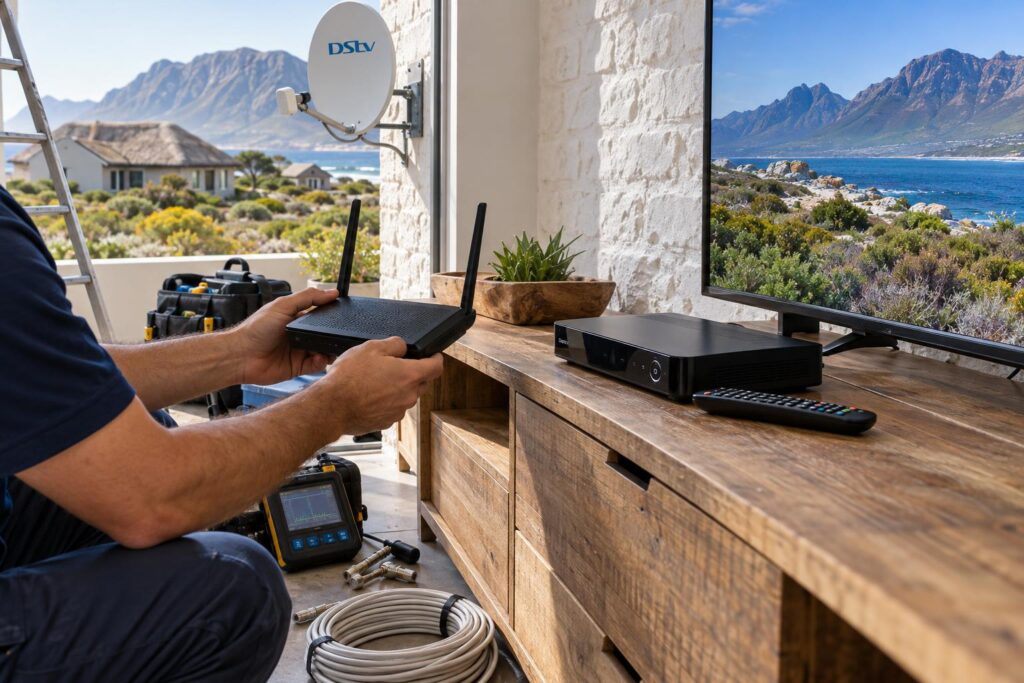
The connector is too far from the router, or too much is in the way. Move the dock to a spot where it gets a better signal, then scan again.
- Lift the dock off the floor and away from the back of the TV.
- Keep it away from metal cabinets and fish tanks.
- Check that the router is on and its WiFi is not switched off.
- If your router has two bands, try the other network name.
The password keeps failing
This is the number one cause of a DStv WiFi connector not connecting. Retype the password slowly. Watch for a capital letter at the start and for the letter O versus zero.
If your router was swapped or reset, the password may have changed. Check the sticker on the new router.
Connected, but Catch Up will not load
A connection only proves the Explora reached your router. It does not prove the internet beyond the router works. Run the Connectivity Checker: press Help, choose Tools, then Connectivity Checker, and press OK.
If the router test passes and the internet test fails, the problem is your internet line, not the decoder. If both pass, give the Explora a few minutes. After a long time offline it may fetch an update first.
Local tip: If your live channels break into blocks, the WiFi is not the cause. Our guide on DStv picture freezing or pixelating covers the dish and cable checks that fix that.
DStv WiFi connector vs a network cable vs Explora Ultra
A WiFi adapter is the quickest way to get an old Explora online. It is not always the best way.
| Option | Best for | Watch out for |
|---|---|---|
| DStv WiFi connector | Original Explora with the router one room away | Weak signal through thick walls or across long houses |
| Network cable to the green port | Any Explora where the router is far away or streaming must be steady | Needs a neat cable route or a wired access point |
| Explora Ultra | Upgrading anyway and wanting WiFi built in | Still needs good WiFi at the TV, like any device |
If the TV is more than a couple of rooms from the router, a cable nearly always wins. A cheap plug-in extender may show full bars and still drop streams.
Our WiFi and network installation team can run a cable or fit an access point near the TV, so the Explora gets a steady link.
If you are thinking of replacing an old Explora instead, see our Explora Ultra price guide before you buy anything.
Betty's Bay conditions that affect your Explora WiFi
Homes here are not like flats in town. We see long single-storey houses in Silver Sands, stone cottages in Rooi Els and double-storey holiday homes in Pringle Bay. Each one treats WiFi differently.
Long houses and thick walls
The router usually sits where the fibre or fixed-wireless line enters the house. That is often the far end from the lounge. Thick brick and stone eat WiFi quickly.
In these homes, the DStv WiFi connector may connect fine on a calm evening and then drop when the house is full. A wired link to the TV room solves it for good.
Load shedding and power cuts
If the router goes off, the Explora goes offline. Live satellite channels can keep running on backup power, but Catch Up stops.
- Put the router and fibre box on the same backup supply as the TV.
- After power returns, give the router a few minutes before you test the Explora.
- Use a surge plug for the decoder, router and TV together.
Holiday homes that stand empty
Many Betty's Bay and Kleinmond homes sit empty for weeks. The router may be switched off, or the internet plan may have lapsed. Then the family arrives and Catch Up does not work.
Our guide to remote readiness for empty holiday homes explains how to keep the internet side alive while you are away.
Some owners in Hangklip skip the decoder for the second TV and stream instead. Our comparison of DStv Stream vs a decoder helps you decide which fits your house.
When to call a technician
Most homeowners get a DStv WiFi connector working on their own with the steps above. Call us when:
- The connector finds your network but drops every evening.
- The Connectivity Checker passes, yet streams stall all the time.
- The TV room is far from the router and you need a cable or access point.
- Live channels also have problems, which points to the dish.
When you book our Betty's Bay DStv installers, we test the WiFi at the TV, set up the Explora, and check the dish signal on the same visit.
Want your Explora online without the guesswork?
We cover Betty's Bay, Pringle Bay, Rooi Els, Kleinmond and the wider Overberg coast. Tell us your decoder model and where the router sits.
Most WiFi problems at the TV are solved in one visit once we can see the layout of the house.
DStv WiFi connector FAQs for Betty's Bay homes
What does a DStv WiFi connector do?
It gives an older DStv Explora a wireless link to your home WiFi. That opens Catch Up, Box Sets and remote recording through the DStv app. It does not affect live satellite channels.
Why is my DStv WiFi connector not connecting?
The most common causes are a mistyped password, a changed router, or a dock too far from the router. Retype the password slowly, move the dock closer, and check that the router is online with your phone. Then run the Connectivity Checker under Help and Tools.
How fast must my internet be for a DStv WiFi connector?
DStv asks for at least 2Mbps for downloads and remote recording, and 4Mbps for standard definition streaming. For HD, aim for 10Mbps or more. An uncapped line is best because streaming uses a lot of data.
Does the Explora Ultra need a DStv WiFi connector?
No. The Explora Ultra has WiFi built in. You connect it to your network straight from its settings, or with a network cable.
Will a WiFi connector fix my picture freezing?
No. Freezing on live channels comes from the dish, LNB or cabling. The WiFi connector only carries internet features.
Can I put the DStv WiFi connector straight into the decoder?
You can, but DStv advises using the docking station next to the decoder. Plugging it straight into the back of the Explora may affect reception. The dock also lets you move it to a spot with better WiFi.